Five9 IVR · testing
Test a Five9 IVR script without placing a call
Most IVR mistakes are logic: a branch that goes nowhere, a holiday check that stopped matching, a menu that loops a silent caller forever. ivrloom runs the script itself in your browser, so you can find those before the script is live — and keep the calls you tested as checks that re-run after every edit.
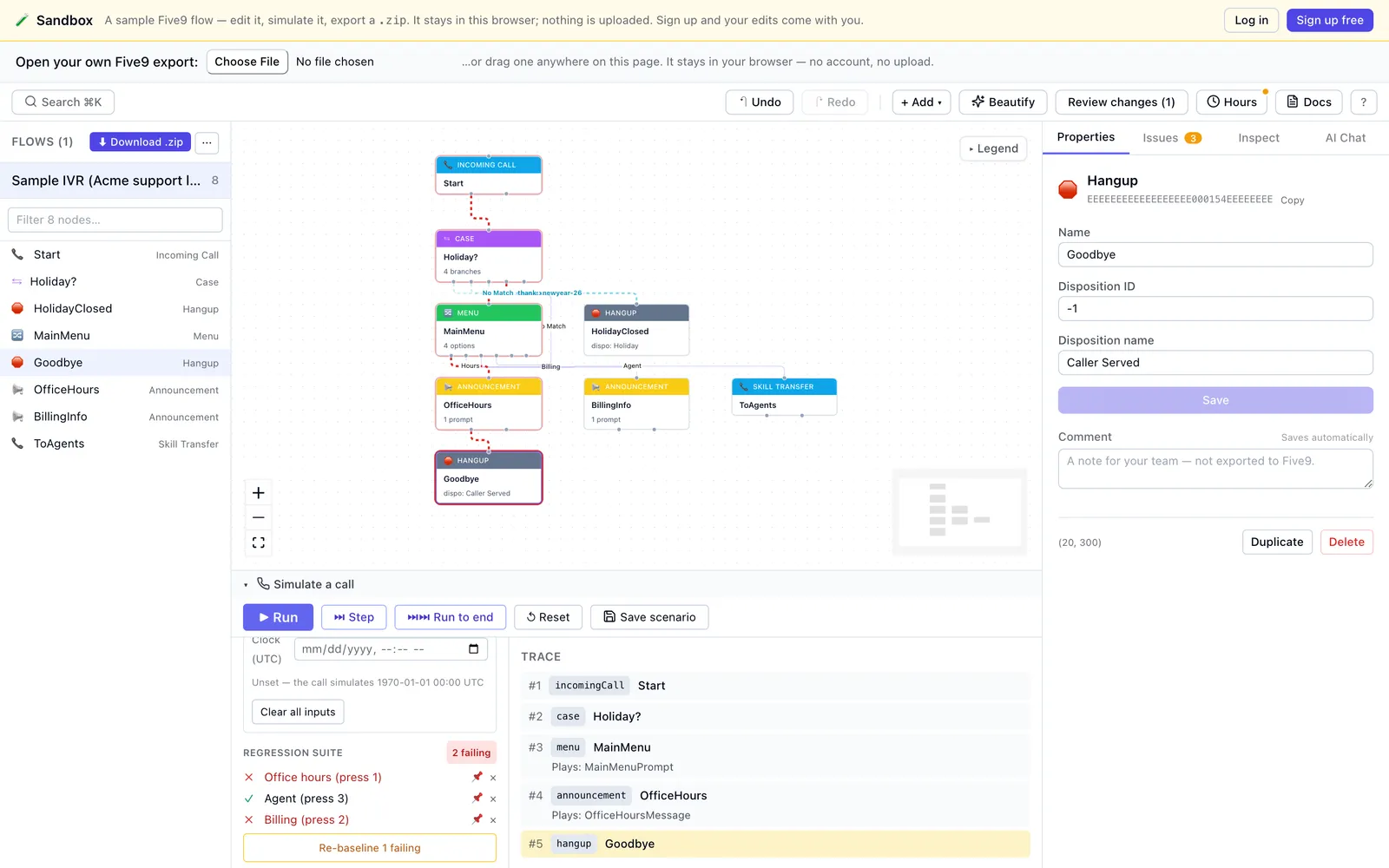
Walk a call through the script
Open an exported .zip (or one .five9ivr script), open the simulator,
and either queue the caller's key presses and press Run, or press
Step to go one module at a time. The trace lists every module the call passed through,
the prompts the caller heard at each, the branch it took, and how the call ended: a hangup, a
transfer, a module with no way out, or a loop that never ends. The route shows on the canvas.
A script often depends on things the file cannot tell you. In step mode the simulator stops and asks: the digits or words the caller gave, "No input — caller stayed silent", a value read from the CRM, a queue statistic such as estimated wait time, or whether a transfer reached an agent. Set the clock to test business hours and holidays, and choose where the caller hangs up to run the script's on-hangup flow.
Keep the calls you tested as regression checks
Save a run as a scenario, then pin its outcome: the path, the disposition, how the call ended and the variables at the end. From then on every saved scenario re-runs as you edit, and the simulator shows how many pass and which fail, with the reason. When a change was intended, Re-baseline accepts the new outcome — but not for a call that now dead-ends or never gets out of a loop, because that is a broken flow, not a new baseline.
The same scenarios guard AI changes. Before you apply a change the assistant proposes, ivrloom replays your saved scenarios against the script before and after it, and lists any whose path, prompts, disposition, ending or end-of-call variables would change.
See which branches no test reaches
Across your saved scenarios, ivrloom counts how many of the script's branches and modules were taken, and lists the ones none of them takes — usually the Else, the No Match, the after-hours route. Click one to jump to it, then add the scenario that covers it.
Checks that need no test call at all
The moment a file opens, a health report sums up what it contains and what looks wrong. The Issues panel then lists each finding: modules nothing leads to, dead ends, a menu with no handling for a wrong key, a transfer with nowhere to go if it fails, loops with no way out, prompts missing from the prompt list, variables read but never set.
One check follows a caller who presses nothing — on a weekday at noon, the same day at 3 a.m., and on a Saturday at noon (UTC) — and reports any loop that caller never leaves, such as a menu whose No Match leads straight back to itself. Every module in such a loop is connected, so a structural check alone cannot see it.
The 🕒 Hours view charts every day and time check in a script across a week and lists the holiday dates it checks, with a warning when the list has run out or will within 60 days. Getting a Five9 IVR ready for a holiday covers the rest of that job.
What it does not test
ivrloom tests the script, not the phone call. It does not dial your number, so it cannot tell you whether the number routes to the right campaign, whether the carrier connects, how the prompts sound, whether speech recognition understands callers, or how text-to-speech reads a prompt. It does not run Five9, so agents, queues and web services are values you supply, not systems it reaches. A call into another script is noted in the trace, not followed. Where the simulator cannot decide a branch, it flags that in the trace instead of guessing quietly.
Some behaviour is our reading of Five9's IVR Administrator's Guide rather than something confirmed on a live call. For example, a menu's retries up to Max Attempts happen inside one step, and a caller who presses nothing then leaves by No Match, as the guide describes.
Simulator and live-call testing do different jobs
Live-call testing tools place real calls into your deployed IVR and listen to what happens. That tests what ivrloom cannot: the number, the network, the audio, speech recognition, and Five9 running the script. ivrloom's simulator works earlier, on the file, while you edit — so the logic is right before you upload, and a test call confirms the rest.
| Question | ivrloom simulator | Live test calls |
|---|---|---|
| When | While you edit, before upload | After the script is live in Five9 |
| What runs | The script's logic, in your browser | Your deployed IVR, over the phone network |
| Places a call | No | Yes |
| Every branch on demand | Yes — supply any input, time or answer | Only what a call can reach at that moment |
| Number, carrier, audio, speech | Not tested | Tested |
Questions about testing
- Does ivrloom call my Five9 number?
- No. The simulator runs your script's logic in your browser. It never dials a number, so it does not test the phone line, the carrier, the audio callers hear, speech recognition, or Five9 itself. Use a test call or a live-call testing tool for those, after you upload.
- Is the simulator exactly what Five9 does?
- It follows the script as Five9's documentation describes it, and it says so when it cannot decide: a branch whose answer depends on something it could not evaluate is flagged in the trace. Some behaviour is our reading of Five9's guide rather than something we have confirmed on a live call — for example, that a menu sends a caller who presses nothing down its No Match branch once Max Attempts run out. The changelog says when we change one of those readings.
- Which plan includes it?
- All of it is on the Free plan: the simulator, saved scenarios, path coverage, the Issues panel and the hours view. The live demo runs it without an account, though scenarios saved there are kept only while the page is open. Rolling a holiday list forward to next year in one step is on paid plans.
- Where are my saved scenarios kept?
- In a signed-in project, a saved scenario — its inputs and expected outcome — is saved to ivrloom with the project, so the check before an AI change can use it on any device. Nothing is saved until you click Save scenario. Security & Privacy lists everything that leaves the browser.
Further reading: Get Digits timeouts and retries, hours-of-operation routing, and the Five9 IVR Script Designer comparison. ivrloom is an independent product, not affiliated with Five9, Inc.