Guide
How to edit a Five9 IVR script in your browser
Six steps, start to finish: export the bundle from Five9, change it in ivrloom, and
re-import it. Your live IVR isn't touched until the last step — and your .zip never
leaves the browser; the project is saved to ivrloom as structured data.
Before you start
You need two things: access to export IVR scripts from your Five9 admin console, and a browser. There is nothing to install — no Java runtime, no desktop app, no admin rights on your machine. The export route needs no Five9 login, so there is no integration to set up and no permission for anyone to grant. (Optional, read-only Five9 connected mode can import scripts straight from Five9 if you prefer.)
If you don't have an export handy, you don't need one yet — the app ships with a sample IVR, and the live demo runs without an account.
The round trip, step by step
- 01
Export the bundle from Five9
In the Five9 admin console, use IVR Scripts to export a
.zip. That file is the whole unit of work — every script in it, plus the prompt audio. ivrloom needs no Five9 login for this — the export is the only handoff. (On Team, or Solo with the add-on, Five9 connected mode can import scripts straight from Five9 instead.) Curious what is inside it? Reading a Five9 export by hand walks through the file. - 02
Drop it into a project
Create a project and drag the
.ziponto the dropzone. It is unzipped and parsed in your browser — in a Web Worker, so a large bundle with dozens of scripts and audio files doesn't freeze the tab. A single.five9ivror.xmlscript works too if you only need one flow. - 03
Edit — by hand, in bulk, or by asking
Click any node to edit its properties. Press ⌘K to search every node and run commands, or ⌘⇧F for find & replace across all flows at once. Undo and redo cover your last 100 edits. The AI panel can propose larger refactors, but it only ever proposes — nothing it suggests is applied until you approve the diff.
- 04
Check your work before it's real
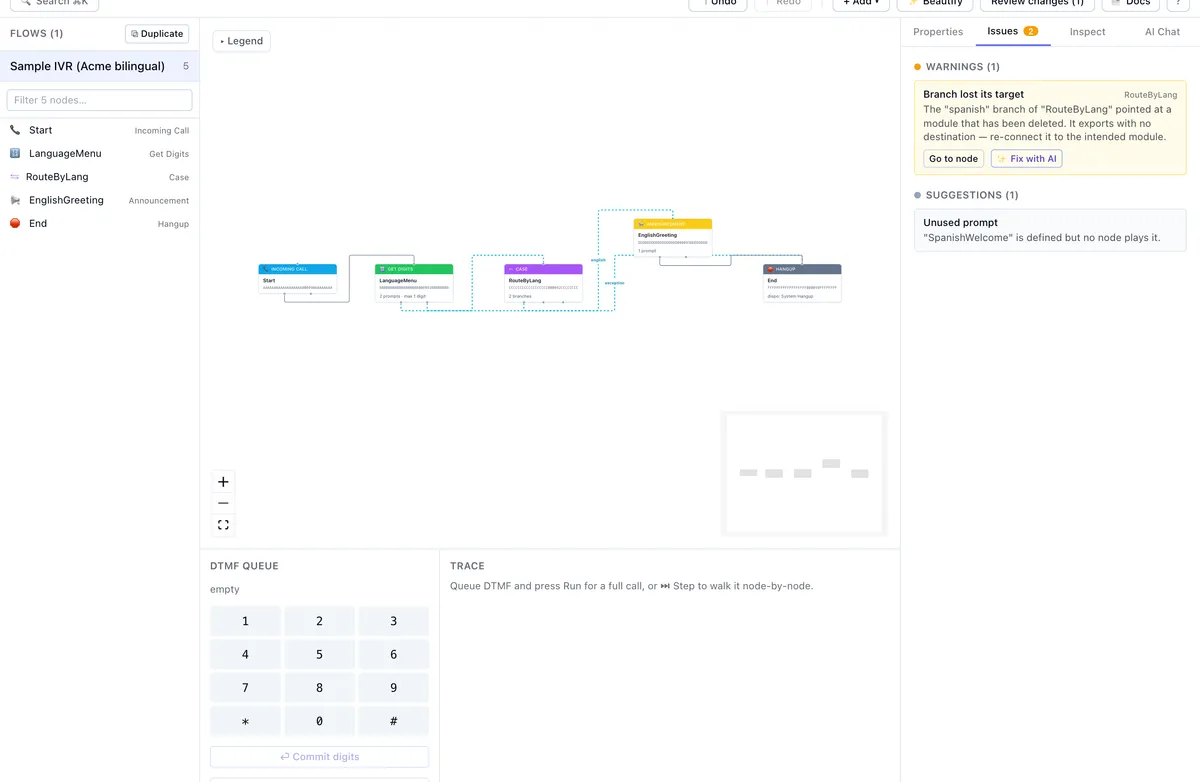
The Issues panel flags unreachable nodes, dead ends, missing prompts, and loops a caller who presses nothing can never leave. The simulator places a call against the flow: queue DTMF digits, step node by node, and read the trace. Save a run as a scenario and it re-runs after later edits, so a change that breaks a path you already tested tells you immediately. 🕒 Hours charts every business-hours and holiday check across a week and lists the holiday dates the script checks, warning you when the list has run out or will within 60 days — free on every plan. The Get Digits timeouts and hours-of-operation routing posts cover what to test.
- 05
Review the diff, then download
Review changes shows a PR-style diff of exactly what you altered, node by node. Check it, then download the modified
.zip. Node types ivrloom doesn't model are preserved byte-for-byte, so nothing is silently rewritten on the way out. In a signed-in project, Save version keeps a copy you can reopen from ⏱ History later — the change history Five9 does not keep for you.
- 06
Re-import in Five9
Import the downloaded
.zipin the Five9 admin console the same way you exported it. Nothing in your live IVR changed until this moment — the entire edit happened on a copy.
Making the same change everywhere
This is the part that takes an afternoon in the Five9 IVR Script Designer, because it edits one flow at a time. Renaming a prompt, repointing a skill, or updating a business-hours check across thirty flows means opening thirty flows.
In ivrloom the bundle is one object, so a change can cross it. Find & replace (⌘⇧F) works across every script at once. For anything that needs judgement rather than a literal match, describe it to the AI panel — it reads the flows with real tools and comes back with a diff. It cannot apply anything itself; you review the change list and approve it before anything in the flow changes. Its edits apply to the flow you have open, but its questions reach the whole bundle: ask where a prompt is played across every flow, what reads a CRM field, or whether a caller can reach a transfer without hearing a disclosure, and it names the flow and the module for each answer. That last kind of answer is worked out from the flow's structure, so it lists the routes that are possible and says which decisions it could not settle. See the side-by-side comparison for the full list of differences.
Working with other people
Offline editing is single-player by design and needs nothing from us. If you'd rather not
pass .zip
files around, the versions ivrloom saves automatically put the project on our servers, so you
can share it with viewers or editors, keep a history of saved versions, and open a pull request
against one — a diff with comments that someone else approves and merges. A workspace owner or
admin can turn automatic saving off;
pricing covers which plans include shared workspaces and seats.
Seeing what changed, script by script
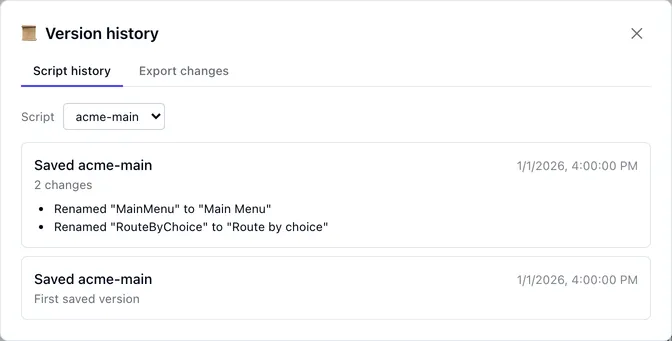
Each saved version records what changed since the one before it. Open ⏱ History →
Script history & changelog to read one script's changes version by version,
in sentences rather than XML — a renamed module, a menu option that now goes somewhere else, a
changed timeout. From the same dialog you can download a CHANGELOG.md between any two versions, or a .zip of only the scripts that changed. The changelog is built from the structural diff, not written
by AI, so it can't list a change that didn't happen. Script history and the exports are on Solo
and above; saving and reopening versions is on every plan.
Common questions
- Do I need a Five9 export to try ivrloom?
- No. There's a sample IVR built in — click "Try a sample IVR" in a new project, or open the live demo with no signup at all. Bring your own bundle when you're ready.
- What file types can I open?
- A
.zipbundle exported from Five9 (the normal case — this carries every script plus prompt audio), or a single.five9ivr/.xmlscript on its own. A file can be up to 64 MB, and a.zipup to 2,000 entries and 256 MB once unpacked — far above any real Five9 export we have seen. A file that is cut short or holds no modules is refused with a message rather than opened as an empty flow. - How long does a large bundle take to open?
- Parsing happens locally, so it depends on your machine rather than our servers — but it runs off the main thread, so the tab stays responsive while it works.
- Can I stop mid-edit and come back?
- Yes. Work in progress is kept in your browser's local storage, so closing the tab doesn't lose it, and a signed-in project also saves a version to ivrloom automatically — the project's IR JSON, not your .zip — so you can pick it up on another machine, share it, or open a pull request against it. A workspace owner or admin can turn automatic saving off.
- What if I make a mistake?
- Undo and redo cover your last 100 edits, and a saved version can be reopened from ⏱ History at any time. Beyond that, nothing you do in ivrloom can affect Five9 — you're editing an exported copy, and your live IVR is untouched until you choose to re-import.
- Does my IVR leave my browser?
- Your
.zipfile never does — it is parsed in your browser. In a signed-in project, ivrloom saves a version of the project (its IR JSON, not the file, never your prompt audio) to ivrloom automatically, unless a workspace owner or admin turns that off. Two more things send data when you choose them: AI assistance (your prompt plus the relevant slice of the flow) and saving a simulator test scenario in a signed-in project (its inputs and expected outcome). Optional Five9 connected mode also passes your Five9 login, the scripts you import and any prompt recording you choose to upload to Five9 through our server, without storing any of them. The Security & Privacy page has the specifics.
More in the full FAQ, or email hello@ivrloom.com — a human reads every message.
Try it on your own bundle
Free forever on the Free plan, no credit card. Your .zip is parsed in your browser
and never uploaded; your project saves to ivrloom automatically so it is there next time.